
Background Video Player for iPhone
Yes — you can keep listening to a local video or audio file on iPhone after you leave the player, as long as the file is stored in VideoVault and Background Playback is enabled (Lifetime Pro). VideoVault is a local media app: import from Photos or Files, then continue playback from Control Center or the lock screen without uploading your media.
Real-world scenarios
Watch a downloaded course clip, then switch apps
You imported a training video into VideoVault. Midway through, you need Messages or Notes. With background playback on, audio continues while VideoVault is in the background.
Listen with the screen locked
On a commute, lock your iPhone and use lock screen media controls to pause, skip 15 seconds, or resume — without unlocking into the full player UI.
Picture in Picture for short multitasking
Where iOS supports it, Pro users can combine background playback settings with Picture in Picture so a video window stays visible over another app.
Step-by-step
Import the video or audio into VideoVault
Open Library, tap +, then choose Import from Photos or Import from Files. VideoVault copies the file into its on-device library.
Unlock Lifetime Pro if needed
Background Playback is a Pro feature. Purchase Lifetime Pro once (non-consumable) or Restore Purchase if you already bought it on this Apple Account.
Enable Background Playback in Settings
Go to Settings and turn on Background Playback. This uses iOS background audio capabilities for media already in your library.
Start playback, then leave the app
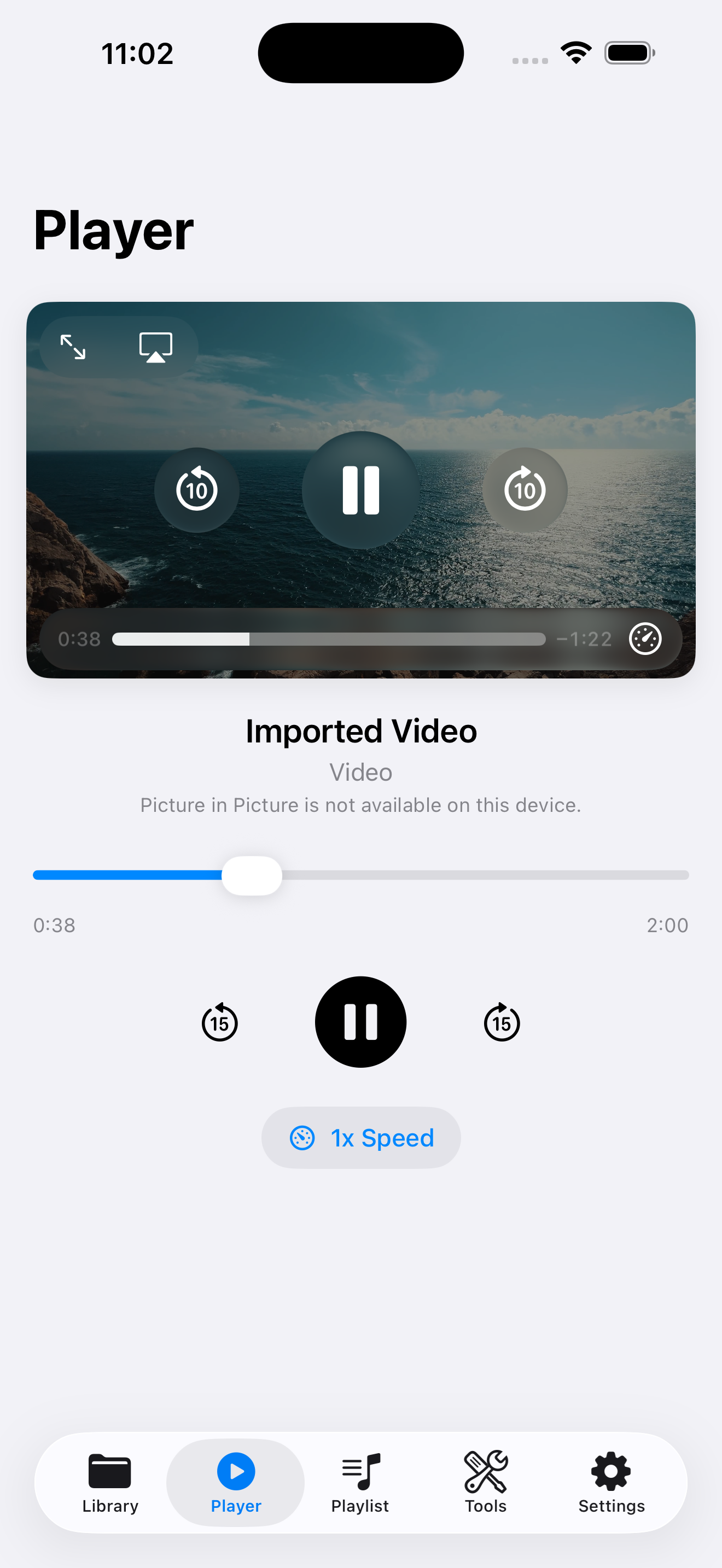
Open the file in Player, press play, then go Home or lock the device. Use system media controls to pause, skip, or resume.
How VideoVault helps
- Keeps media local — no account and no upload of your videos to a VideoVault server.
- Supports seek, ±15 second skip, and playback speed in the in-app player.
- Works with playlists so a lecture series or workout set can continue to the next item.
- Pairs with Full Library Backup so your offline library can move with you to a new device.
Limits and supported formats
What VideoVault does not do
- No online video downloaders (no YouTube, TikTok, or web URL download).
- No cloud sync of your library between devices — use Full Library Backup / Restore instead.
- Background Playback and Picture in Picture require Lifetime Pro where gated.
- No AI subtitles, transcription, or automatic chaptering.
- Not a professional multi-track timeline editor.
Formats
- Video import: MP4, MOV, M4V
- Audio import: MP3, M4A, AAC, WAV
- Playback stays on-device inside the VideoVault sandbox
FAQ
Does background playback work with video files or only audio?
You can start from a video or audio item in your library. When VideoVault is backgrounded or the screen is locked, iOS continues the audio stream according to your Background Playback setting.
Why did playback stop when I left the app?
Confirm Lifetime Pro is active, Background Playback is enabled in Settings, and Low Power Mode or Focus settings are not interrupting media. Then restart playback from Player.
Can VideoVault play videos still sitting only in Photos?
Import first. VideoVault plays files copied into its library, which keeps playback and playlists reliable offline.
Is there a subscription for background play?
No. Lifetime Pro is a one-time App Store purchase. Restore Purchase restores the entitlement, not your media files.
Related articles
Get VideoVault on the App Store
Import local video and audio, organize playlists, extract M4A audio, and unlock background playback with a one-time Lifetime Pro purchase — no subscription.
App Store listing is being prepared.
Download on the App StoreExplore VideoVault