
Extract Audio from Video on iPhone (M4A)
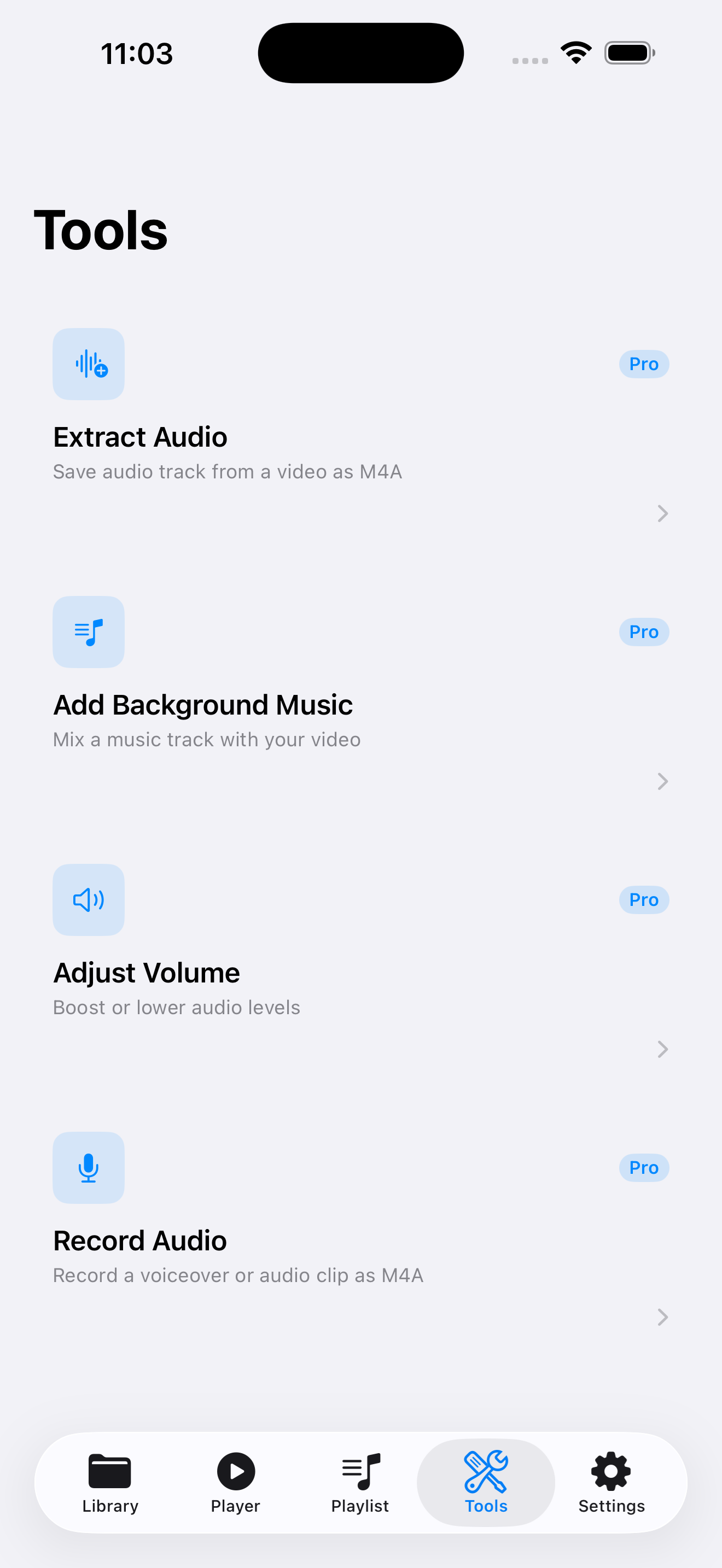
To pull sound out of a video you already have on iPhone, import the video into VideoVault and use Extract Audio. The tool writes an M4A file into your library — not MP3. Everything runs on your device; VideoVault does not download videos from YouTube, TikTok, or other websites.
Real-world scenarios
Save a voice memo buried inside a camera video
You recorded a meeting or idea as video. Extract Audio gives you a lighter M4A clip for listening or sharing without the picture track.
Reuse dialogue for a rough podcast draft
After a recorded interview video lands in Files or Photos, extract the soundtrack locally before you edit elsewhere. VideoVault does not publish to podcast hosts.
Keep music beds from a personal project video
If you own the rights to the footage, extract the audio bed as M4A for reuse in another local project.
Step-by-step
Import the source video
From Library, import via Photos or Files. Confirm the clip appears with a thumbnail and duration.
Open Tools → Extract Audio
Lifetime Pro unlocks media tools. Select Extract Audio and choose the imported video as the source.
Run extraction and save to Library
Start the job and wait for completion. VideoVault saves a new M4A item in your library — it does not upload the result.
Play, share, or organize the M4A
Open the audio in Player, add it to a playlist, or use Export & Share (Pro) via the iOS share sheet when you need a copy elsewhere.
How VideoVault helps
- On-device extraction keeps sensitive recordings off a developer server.
- M4A output matches common Apple playback and editing workflows.
- Extracted files become regular library items you can rename, search, and back up.
- Works alongside playlists and background playback for long listening sessions.
Limits and supported formats
What VideoVault does not do
- Output format is M4A, not MP3.
- No online video download or YouTube / TikTok import.
- No AI transcription, captions, or speaker labels.
- No direct publish to Spotify, Apple Podcasts, or other hosts.
- No video compression tool in VideoVault.
- Not a multi-track DAW or timeline NLE.
Formats
- Source video: MP4, MOV, M4V
- Extracted audio output: M4A
- Other library audio you may already have: MP3, M4A, AAC, WAV
FAQ
Can I export MP3 instead of M4A?
No. VideoVault’s Extract Audio tool exports M4A. If you need MP3, convert the M4A in another app after Export & Share.
Can I paste a YouTube link to extract audio?
No. VideoVault only works with media you import from Photos or Files. It is not a web downloader.
Where is the extracted file stored?
Inside VideoVault’s on-device library. Deleting the app can remove local media unless you previously exported a Full Library Backup.
Does extraction require the internet?
No network is required for the extraction itself. An internet connection is only needed for App Store purchase or restore flows.
Related articles
Get VideoVault on the App Store
Import local video and audio, organize playlists, extract M4A audio, and unlock background playback with a one-time Lifetime Pro purchase — no subscription.
App Store listing is being prepared.
Download on the App StoreExplore VideoVault