Turn a Video Interview into Podcast Audio
If your interview already exists as a video file on iPhone, VideoVault can extract the soundtrack to M4A for a podcast workflow. That covers the “video to audio” step locally. VideoVault does not download interviews from YouTube, does not transcribe guests with AI, and does not publish episodes to Apple Podcasts, Spotify, or other hosts — you export the audio and upload with your own podcasting tools.
Real-world scenarios
Camera interview to audio episode draft
You filmed a guest on video. Extract Audio produces an M4A you can level in a podcast editor next.
Zoom recording already saved to Files
Import the recording, extract speech to M4A, and keep the video master in Library if you still need B-roll later.
Bonus audio feed for existing video content
Creators who already ship video can offer an audio-only companion file without re-recording the conversation.
Step-by-step
Import the interview video you own or have rights to use
Bring the MP4/MOV/M4V into VideoVault from Photos or Files. Do not expect URL-based imports from social sites.
Run Extract Audio
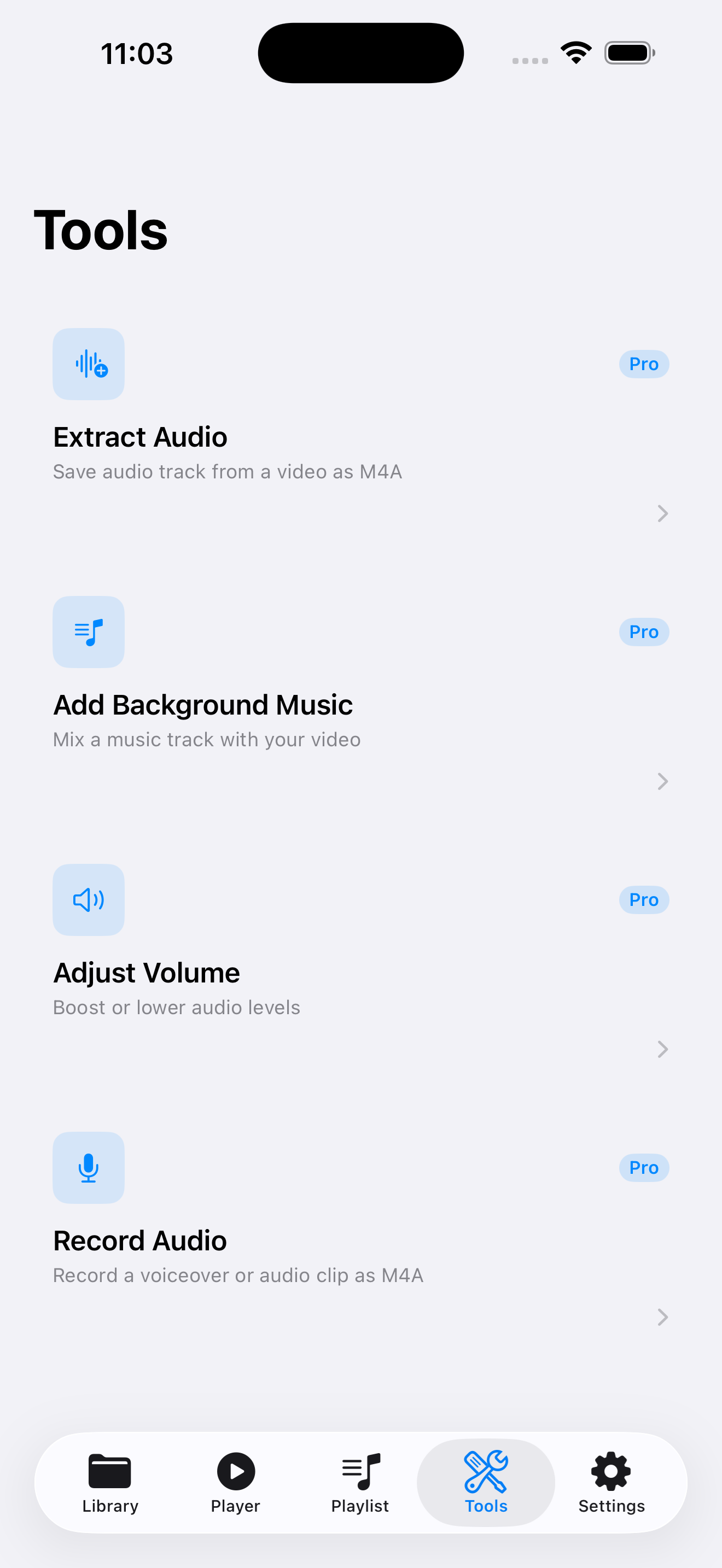
In Tools, choose Extract Audio (Lifetime Pro), select the interview, and save the M4A into Library.
Optional: record a host intro voiceover
Use Record Audio to capture an intro or disclaimer as a separate M4A, then combine files in your podcast editor of choice.
Export & Share, then publish elsewhere
Share the M4A through the iOS share sheet to Files, AirDrop, or your editor. Upload the finished episode from your podcast host — not from VideoVault.
How VideoVault helps
- Splits picture and sound without a laptop for the first pass.
- Keeps raw interviews private on device during extraction.
- Playlists can hold episode drafts and extracted takes together.
- Backup protects unreleased interviews before you wipe a handset.
Limits and supported formats
What VideoVault does not do
- Extracted format is M4A, not MP3.
- No YouTube / TikTok / RSS download of someone else’s show.
- No AI transcription, show notes, or audiogram generator.
- No direct publish to podcast platforms.
- No multi-track ducking suite comparable to desktop podcast software.
- No cloud sync of unpublished episode drafts.
Formats
- Interview video input: MP4, MOV, M4V
- Extracted episode audio: M4A
- Optional recorded intros: M4A
FAQ
Will VideoVault submit my episode to Apple Podcasts?
No. It prepares local audio. Use a podcast host or hosting dashboard to publish and syndicate.
Can I convert to MP3 for my host?
Extract Audio outputs M4A. Convert in another tool if your host requires MP3.
Can I paste a YouTube interview link?
No. Import a file you already have. VideoVault is not an online downloader.
Does Restore Purchase bring back interview files?
Restore Purchase restores Lifetime Pro only. Media returns via Full Library Backup / Restore or original imports.
Related articles
Get VideoVault on the App Store
Import local video and audio, organize playlists, extract M4A audio, and unlock background playback with a one-time Lifetime Pro purchase — no subscription.
App Store listing is being prepared.
Download on the App StoreExplore VideoVault