
Record a Voiceover on iPhone
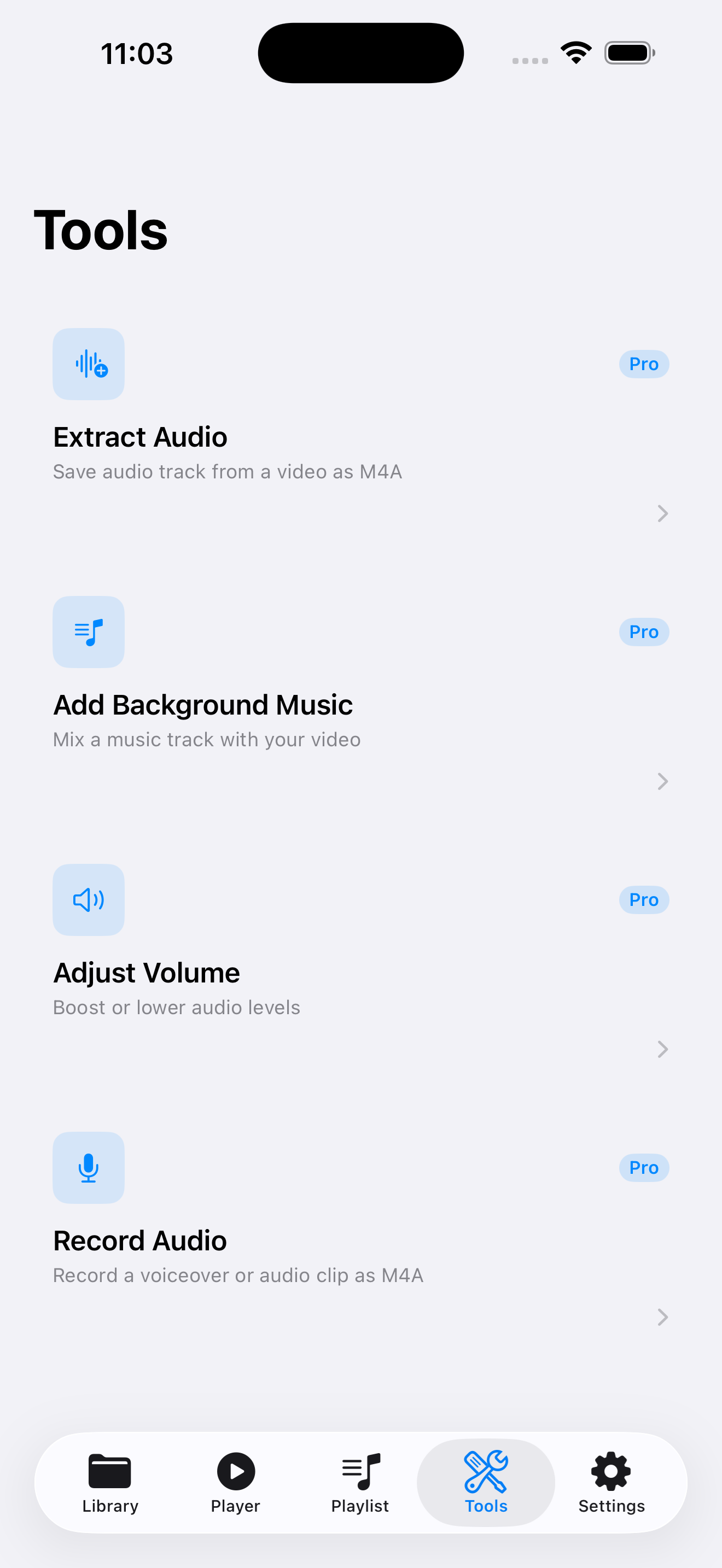
VideoVault includes a Record Audio tool (Lifetime Pro) for capturing narration or voice notes straight into your local library as M4A. Use it for simple voiceovers, reminders tied to a project, or scratch commentary. It is not an AI voice generator, not a multi-track studio, and microphone access is requested only when you start recording.
Real-world scenarios
Narrate a silent product demo
Record a voiceover take, then keep the M4A beside the demo video in your library for a later mix or external edit.
Coach feedback on a trainee clip
Watch a training video, then record spoken notes explaining what to fix — stored privately on device.
Capture interview follow-ups
After a taped conversation, record a short host intro or disclaimer as a separate M4A without opening a full podcast suite.
Step-by-step
Allow microphone access when prompted
Open Tools → Record Audio and grant microphone permission. Denying permission blocks recording only, not the rest of the app.
Record your take
Capture narration in a quiet space. Stop when finished; VideoVault saves an M4A into Library.
Rename and preview
Give the clip a clear title, play it back, and re-record if needed. Previous takes remain until you delete them.
Combine with video elsewhere in your workflow
Use the M4A with Add Background Music / volume tools where applicable, or Export & Share to finish in another editor.
How VideoVault helps
- Keeps voice takes next to the related videos in one library.
- M4A capture fits Apple-centric editing and sharing paths.
- No account wall before you can record a private note.
- Backups can include recordings when you export a Full Library Backup.
Limits and supported formats
What VideoVault does not do
- No AI text-to-speech voices or script autodub.
- No multi-track punch-in timeline like a DAW.
- No automatic noise removal suite beyond what you capture cleanly.
- No direct upload to podcast hosts or social apps beyond the iOS share sheet.
- Output is M4A, not MP3.
Formats
- Recorded voiceover output: M4A
- Companion video formats in library: MP4, MOV, M4V
- Other importable audio: MP3, M4A, AAC, WAV
FAQ
Does VideoVault record in the background while I use another app?
Use the in-app Record Audio flow for captures. Background Playback is for playing library media, not for unattended multi-app recording sessions.
Are recordings uploaded for processing?
No. Recordings stay in on-device storage unless you choose to share or back them up yourself.
Can I export MP3 voiceovers?
VideoVault saves recordings as M4A. Convert after export if another workflow requires MP3.
What if I denied microphone access?
Re-enable Microphone for VideoVault in iOS Settings → Privacy & Security. Other library features continue to work without it.
Related articles
Get VideoVault on the App Store
Import local video and audio, organize playlists, extract M4A audio, and unlock background playback with a one-time Lifetime Pro purchase — no subscription.
App Store listing is being prepared.
Download on the App StoreExplore VideoVault